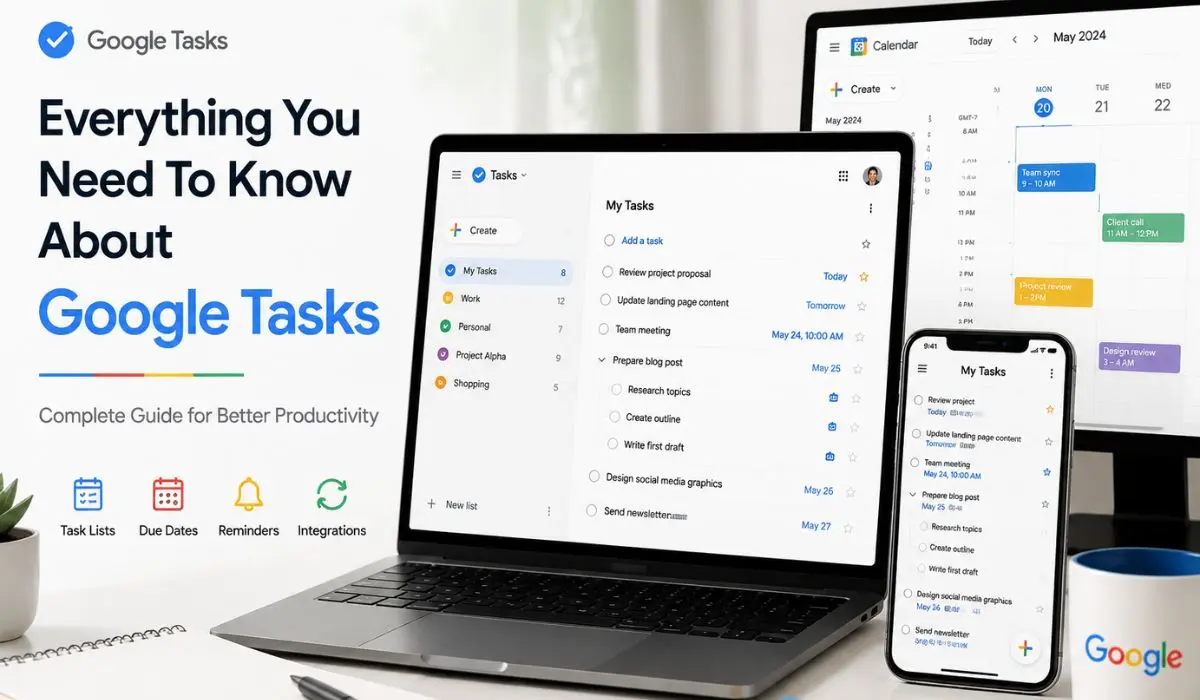


This guide is a breakdown of everything Google Tasks has to offer, from beginner basics to advanced features. It covers integrations, troubleshooting, comparisons, and productivity tips to help you get the most out of the tool.
Google Tasks is available across desktop and mobile devices and remains a popular way to keep track of personal to-dos. But it does have certain limitations; we’ll cover those too, along with where Google Tasks fits best.
What Are Google Tasks?
Google Tasks is one of the many tools created by Google where you can create a list with self-created tasks and subtasks. These tasks can be assigned due dates and be placed on your Google Calendar. Since Google Tasks are linked to Gmail, you can convert emails themselves into tasks by dragging them into the tasks sidebar. With Google Tasks, users can create lists, tasks, and subtasks. Let’s talk about the difference between these three features below.
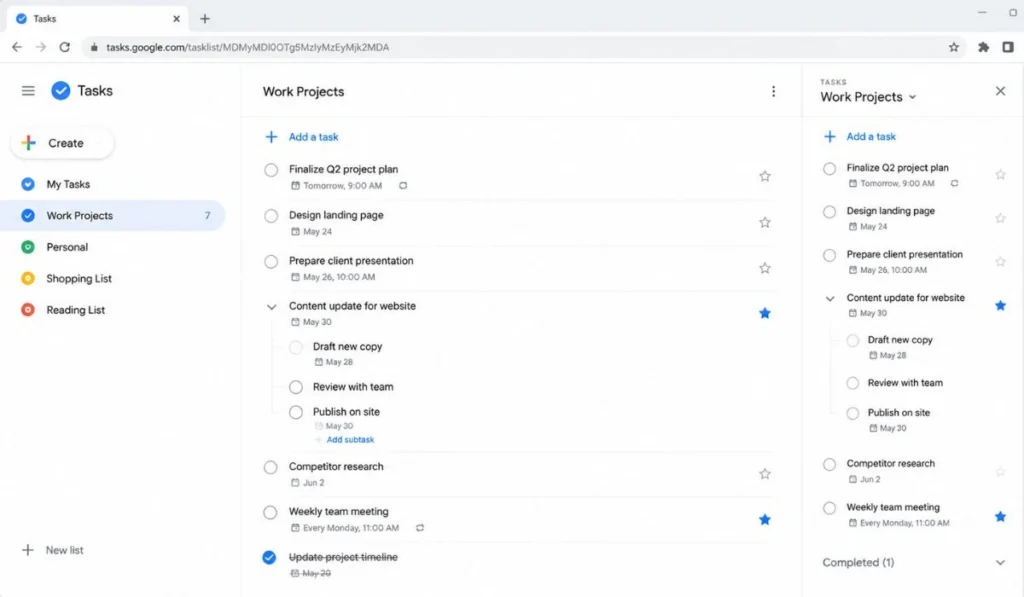
Lists serve as the top level of the structure that makes up Google Tasks and can be used to separate work tasks from personal ones, categorize tasks for ongoing projects, or any other division that suits your needs. Tasks represent individual items you need to complete within each list, while subtasks or tiny tasks allow you to break down tasks into smaller, more manageable components.
Key Features of Google Tasks
- Creating task lists: You can make task lists in Google Tasks to sort your tasks by context. (eg: Work, Personal. Project, etc)
- Creating subtasks: You can break a big task into multiple small tasks using the subtasks feature.
- Due dates: Set a due date for a task by clicking on it, then clicking the clock/calendar icon, and setting the desired date and time.
- Recurring tasks: Google Tasks lets you add recurring tasks to the list. It is helpful for routine tasks like daily, weekly, and monthly meetings.
- Multiple task lists: On Google Tasks, you can create and switch between multiple task lists.
- Drag-and-drop organisation: You are allowed to move a task from one list to another with a simple drag-and-drop mechanism.
- Gmail integration: You can turn any email into a task by either using the Add to Tasks button from Gmail or simply dragging and dropping the email into Tasks
- Google Calendar integration: Tasks from your to-do lists will show up on your Google Calendar if they have due dates. It will also be updated when you update the tasks on Google Tasks upon completion or if you edit them
- Mobile app: Tasks has a dedicated mobile app available on the App Store for iOS and Google Play for Android.
- Completed tasks: Your completed tasks will disappear from the to-do list and from your Google Calendar. It will remain in the Completed section at the bottom of that list.
How To Access Google Tasks
Google Tasks can be accessed from various platforms and integrated into other Google services. Here’s how you can access Google Tasks:
Accessing Google Tasks from Gmail
- Open your Gmail account
- Click on the symbol of the dots arranged in a square on the upper right side.
- Scroll down and click on the check mark app icon labelled “Tasks”
Alternatively, you can also find the same icon on your right sidebar and click it.
Accessing Google Tasks from Google Calendar
- On the right side of the screen, you’ll see a side bar with various icons.
- Click on the blue checkmark icon that says “Tasks” when you move your cursor over it.
Using a Mobile Device to Access Google Tasks
All you have to do to access Google Tasks on your mobile device is download the Google Task app from the App Store or the Play Store if you are using a tablet or non-Apple device.
How To Manage Google Tasks
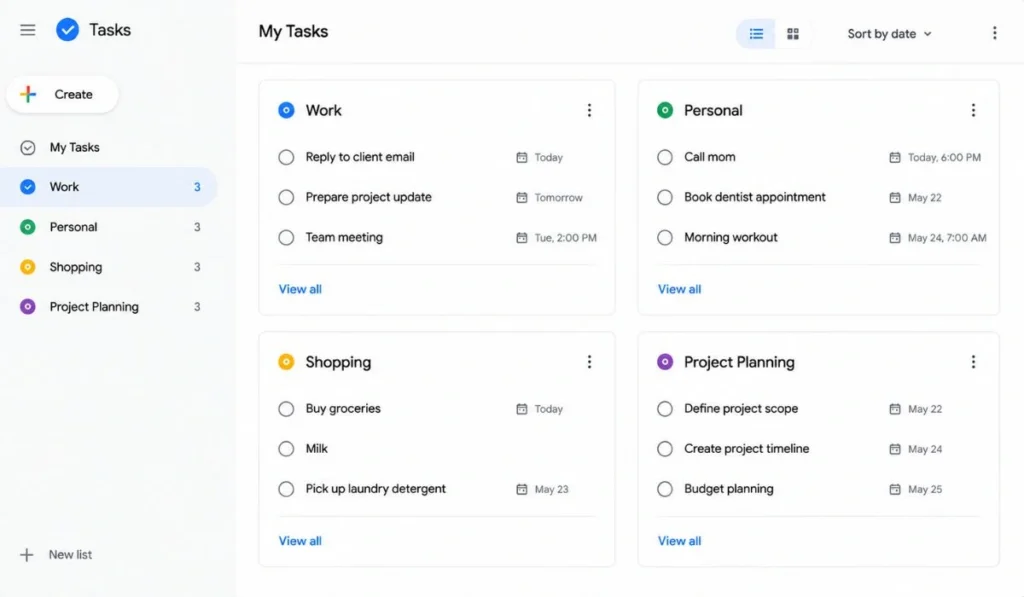
Managing your Google tasks effectively is key to maximizing your productivity. Here are some essential tips for organizing your tasks:
Organizing Google Tasks With Lists
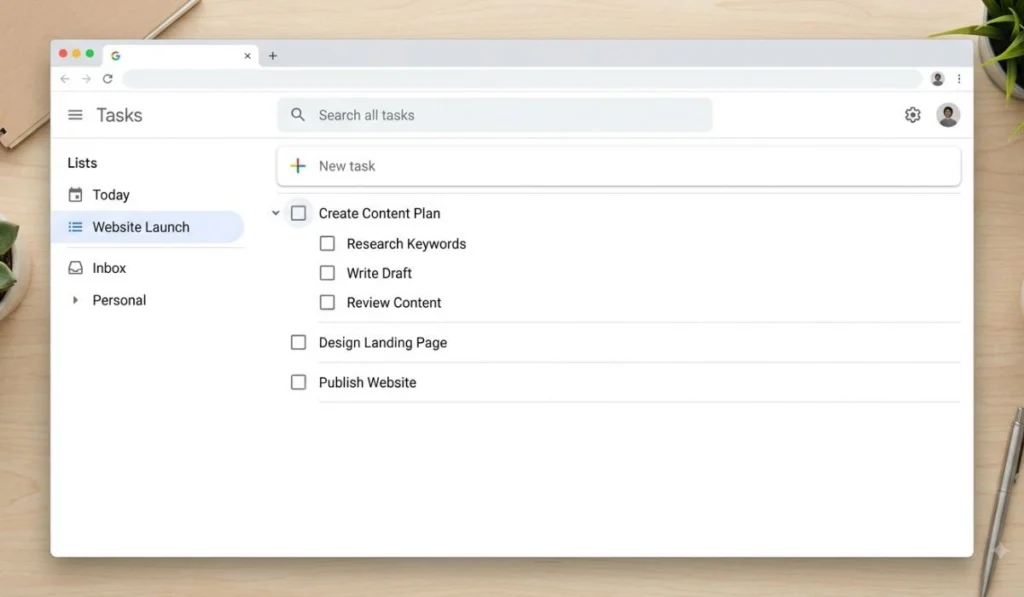
You can make a list in Google Tasks by following these steps:
Step 1: Go to Gmail, Calendar, Chat, Drive, or a file in Google Docs, Sheets, or Slides.
Step 2: On the right, click Tasks.
Step 3: At the top, click the Down arrow.
Step 4: Click Create a new list.
Step 5: Enter a name for your list that describes what category/topic it serves as its purpose such as school or work.
Step 6: Click “Done”.
You can also switch between lists, rename lists, and reorder lists using the same menu.
How to Use Google Tasks Effectively
Imagine it is your first day at work and you have to use Google Tasks. Do not fret. Let me walk you through how to use Google Tasks.
- Creating your first task
On the Tasks webpage, click on Create a new list. Enter a name (like “Work”) and click Done. Now you can add all related tasks to this list.
- Creating multiple task lists
You might be expected to carry out several tasks belonging to different categories at your work (e.g., Administrative, daily, weekly). You can create and switch between multiple task lists on Google Tasks by repeating Step 1
- Adding subtasks
Right-click the main task and create subtasks to break down your bigger task into smaller, manageable tasks. The daily task “Morning Meeting” can have a subtask called “Presentation”.
- Setting due dates
You can set a task’s due date by clicking the task, then clicking the clock symbol, and setting the desired date and time. You can set “Weekly Review” for Friday at 11:00 AM.
- Creating recurring tasks
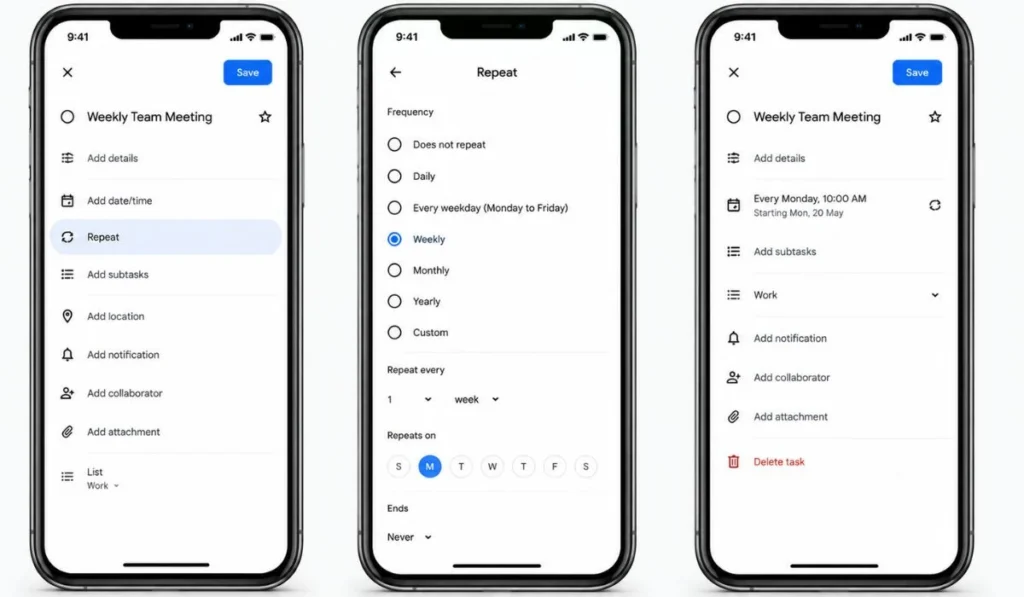
Recurring tasks like daily and weekly meetings can be added by clicking on the clock icon and clicking Repeat. From there, you can decide how often you want it to repeat. Your Weekly Review can be scheduled every week without fail.
Additional tips:
- After completing a task: Click on the “check mark”. It will disappear from the list and your Google Calendar.
- Organising work and personal tasks: You can use Tasks to manage both your work and personal tasks simply by making two separate lists.
- Productivity tip: Avoid cluttering a list to the point it becomes disorganised. Break it into two instead.
Google Workspace Integrations
Google Tasks is integrated with many of Google’s other Workspace products like Gmail, Calendar, Docs, Drive, Chat, etc. to make your work easier.
Gmail: You can turn any email into a task by either using the Add to Tasks button from Gmail or simply dragging and dropping the email into Tasks
Google Calendar: Tasks from your to-do lists will show up on your Google Calendar if they have due dates. It will also be updated when you update the tasks on Google Tasks upon completion or if you edit them.
Google Docs: Tasks’ Integration with Google Docs is limited compared to other Workspace products, but you can turn regular texts or checklisted items into tasks by either typing @task or clicking the Add to Tasks button on the left side of the checkbox.
Google Drive: You can access Google Tasks directly from the Google Drive right-hand side menu while you browse any files. You can also use the Add a Google Drive attachment option on Tasks to attach files to a task.
Google Chat: Similar to Google Drive, you can access Tasks from the right-hand side menu in Google Chat.
Zapier: Zapier is an automation tool that lets you connect different apps to automate repetitive tasks. With Zapier, you can integrate Google Tasks across thousands of Apps.
IFTTT: IFTTT is another automation tool that lets you create conditional statements (called Applets) to connect your apps and services. You can use IFTTT applets to integrate Google Tasks with more apps.
Google Apps Script: Google Apps Script is another tool that lets you automate tasks among Google products.
Google Tasks’ native automation is very limited compared to other dedicated task management software.
Google Tasks Automation
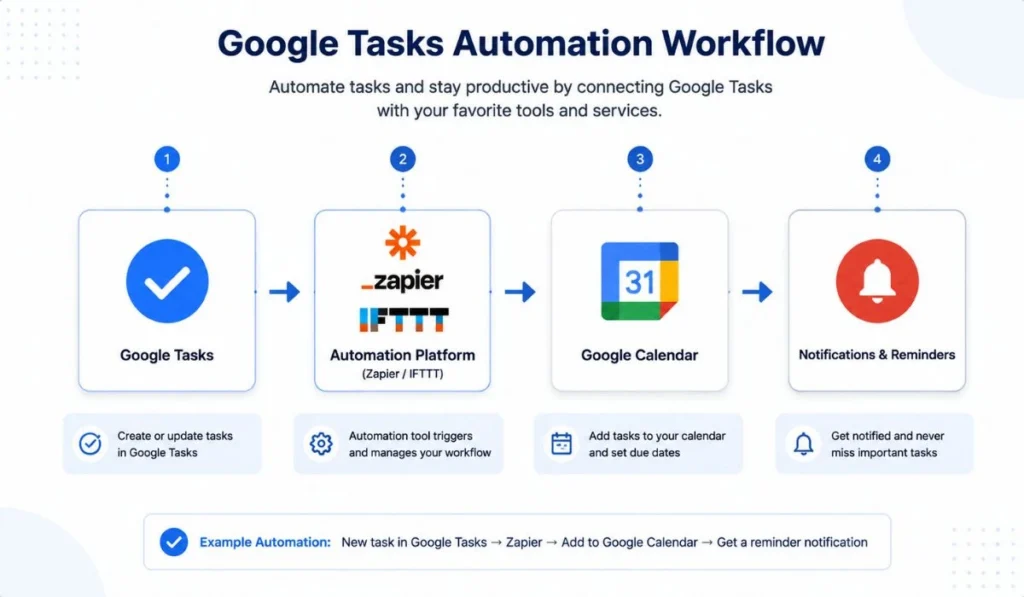
While Google Tasks does not have native automation features, you can automate your task management system using third-party solutions. You may use tools like Zapier and IFTTT to build automated workflows that connect Google Tasks to other applications and services. You can also use Google Apps Scripts, which is a dedicated Google tool for automating tasks across Google products.
Google Tasks vs Google Keep
| Google Tasks | Google Keep |
| Primary purpose is task management | Primary purpose is note-making |
| Additional features include recurring tasks, complete integration with Google Calendar, etc | Customizable features like color code, labeling, ability to pin certain notes, etc |
| Add due dates and priorities to your tasks | Set date and time notification reminders for your notes |
| Personal use only | Shared notes function allows collaboration |
Google Tasks is a better choice if your requirement is more a to-do list and time-bound project list-making. If your requirements are more on the research side and you would benefit from collaboration, choose Google Keep.
Google Tasks vs Other Task Management Apps
| Google Tasks | Google Keep | Todoist | Microsoft To Do | |
| Primary Purpose | Personal task management | Note-making | Advanced management | Personal and Work task management |
| Recurring Tasks | Yes | Yes | Yes | Yes |
| Collaboration | Limited | Yes (shared notes) | Yes (shared projects) | Yes (shared lists) |
| Attachments | Yes (via Google Drive) | Yes | Yes (with paid plan) | Yes |
| Calendar Integration | Google Calendar | Google Calendar | Google Calendar and other Calendars | Outlook Calendar |
| Mobile Experience | Lightweight and easy | Great for notes | Customizable features | Syncs well across Microsoft apps |
| Best Use Cases | Daily planning, to-do lists, etc | Note-making, checklists, etc | Complex task management | Productivity tool for Microsoft 365 users |
Google Tasks Limitations
Despite its usefulness, some aspects of Google Tasks fall short. Some of the major limitations of Google Tasks are given below.
Limited collaboration: You cannot share your personal task lists with others or invite them to collaborate with you unless you use workarounds.
No Kanban boards: Google Tasks lacks a visual workflow view like Kanban Boards. It only has standard vertical lists.
No advanced reporting: Advanced reporting in task management software allows you to build customised reports with in-depth analysis and wider parameters. Google Tasks does not provide advanced reporting.
Limited automation: Google Tasks does not have an automation feature. You have to use automation tools like Zapier and IFTTT to work around this limitation.
Basic notifications: It does not send notifications like other task management software. It relies on other Google software, mostly Google Calendar, to send notifications.
No built-in time tracking: It has no built-in time tracking feature. Tasks are either incomplete or completed. It does not show you the duration to the deadline either. You will have to rely on external software.
Google Tasks is best suited for lightweight task management. It does not provide enough features for more advanced requirements.
Best Use Cases for Google Tasks
These are instances where Google Tasks perform the best.
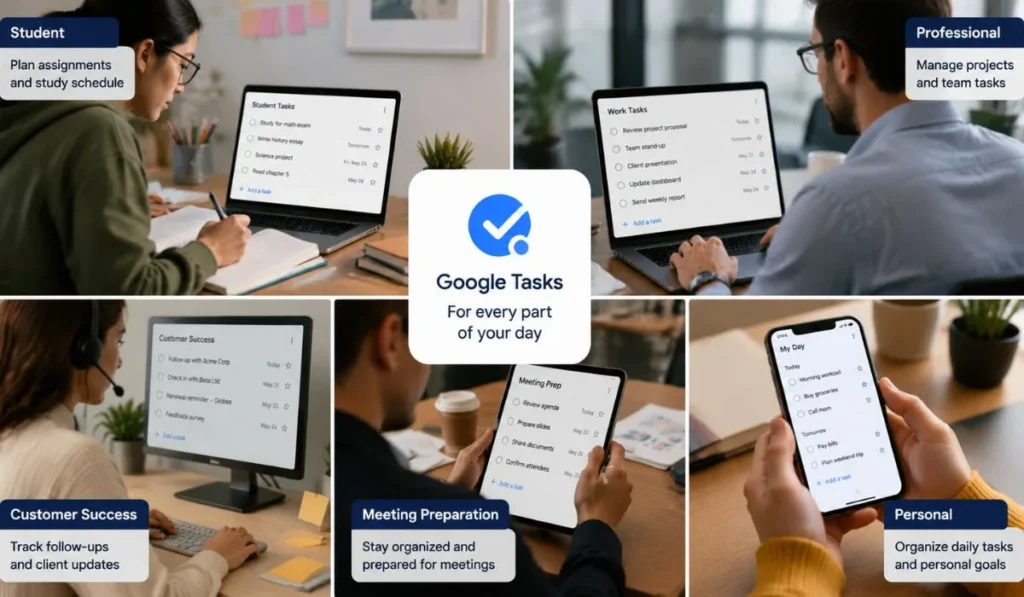
Personal task management: It may not be suited for advanced requirements, but it is one of the best task management software when it comes to personal task management
Daily planning: Tasks can organise your daily tasks effectively.
Customer Success follow-ups: Your customer success follow-ups can be very convenient if you plan them with Google Tasks
Sales reminders: Sales reminders can be sent in an orderly and timely fashion if Google Tasks is involved
Meeting preparation: Tasks can be used to create a list of things to be covered in a meeting.
Email follow-ups: Sending timely email follow-ups will be easier with Tasks, especially due to Gmail integration.
Students: Students can track daily, monthly, and sem-wise curriculum requirements with Tasks
Lightweight project tracking: Though it is not suited for heavy requirements, Tasks can track your smaller lightweight projects with ease.
What Are Some Google Tasks Keyboard Shortcuts You Should Know About
- Create a task: Enter
- Mark a task as complete: Space
- Indent task: ⌘ + ] (Mac) Ctrl + ] (Windows)
- Remove indent: ⌘ + [ (Mac) Ctrl + [ (Windows)
- Add sub-item: ⌘ + Opt + Return (Mac) Ctrl + Alt + Return (Windows)
- Finish editing: Esc or Enter
- More actions: (period) or v
- Move down: ⌘ + Down (Mac) Ctrl + Down (Windows)
- Move to bottom: ⌘ + Shift + Down (Mac) Ctrl + Shift + Down (Windows)
Google Tasks Tips & Best Practices
- Write Everything Down: Whenever you think of a task, add it to your task list right away. This helps you avoid forgetting tasks and ensures that nothing gets missed.
- Prioritize and Focus: Regularly review your task list and prioritize tasks based on their urgency. Focus on completing high-priority tasks first to maximize productivity and achieve your goals efficiently.
- Break Tasks Into Smaller Steps: For complex or larger tasks, break them down into smaller, actionable subtasks. It is the best way to manage large projects and cultivate a sense of progress.
- Organize Tasks Using Labels and Categories: Assign labels or categories to your tasks depending on the specific projects they belong to and their priority level. This makes it simple to filter activities when directly searching for them from the search bar in Google Calendar
- Leverage Reminders: Take advantage of reminders in Google Tasks to receive notifications about upcoming due dates or important tasks. Set reminders that align with your workflow and preferences to ensure you stay on track and meet your deadlines.
- Regularly Review and Update: Schedule regular reviews of your task list to assess progress, reprioritize tasks if needed, and ensure that you’re aligned with your goals. Regularly update task details, such as due dates or additional notes, to keep your task information accurate and relevant.
- Practice Discipline and Consistency: Make using Google Tasks a habit by incorporating it into your daily routine. Consistently review and update your tasks, adhere to your set deadlines, and practice disciplined task management to maintain a productive workflow.
- Daily Workflow: Use Google Tasks to create an ordered Daily workflow from the beginning of the day till you clock out.
- Customer Success workflows: From cold calls to routine follow-ups, use Google task lists, subtasks, and reminders to manage customer success workflows.
- Organising multiple task lists: Create separate lists for each different set of tasks to prevent overcrowding.
- Weekly review habits: Maintain a weekly review habit to make updates to your list, such as schedule changes, completion, deadline changes, priority changes, etc.
- Time management: Having a neatly organised task list can tremendously reduce your stress and confusion for upcoming tasks. You will also be able to manage your time better.
Conclusion
Google Tasks is an invaluable platform for creating and monitoring your daily tasks. It also syncs with nearly every Google tool out there like Google Calendar and Gmail. This tool is great for coping with pressure and enhancing your time management abilities.
Frequently Asked Questions
Does Google Tasks sync with Google Calendar?
Yes. Many of Google Tasks’ functionalities even depend on active sync with Google Calendar.
Can I share Google Tasks with other people?
No. Google Tasks’ built-in features do not allow you to share your tasks with anyone.
Is Google Tasks better than Google Keep?
Google Tasks is a personal task management software, while Google Keep is a note-making software. “Better” is subjective depending on your requirements.
How do I recover completed or deleted tasks?
Completed tasks can usually be found at the bottom of the list in a separate drop-down menu titled “Completed”. However, if you deleted it, it cannot be recovered.
Can I move tasks between lists?
Yes. Moving tasks between lists can be done with a drag and drop in Google Tasks
Can I export Google Tasks?
Not with Google Tasks’ native features. You will have to use workarounds like third-party software.